
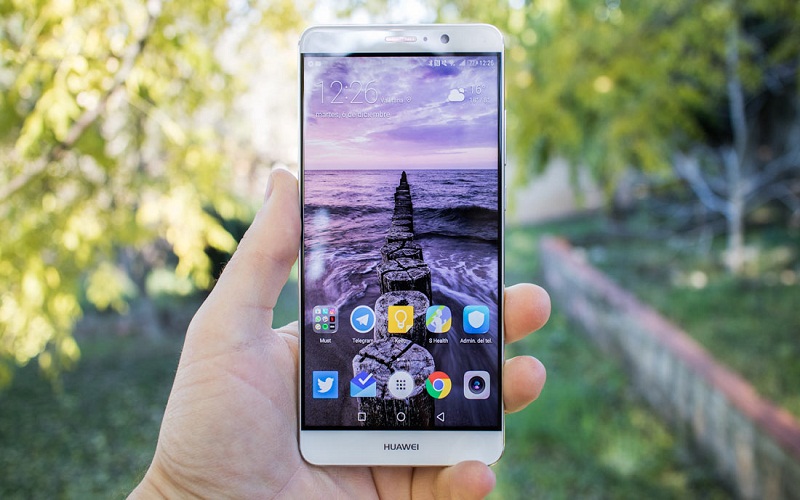
WiFi connection– Technology, despite having improved a lot over the years, continues to fail from time to time. It is not uncommon for mobiles to give us problems, and WiFi can be the protagonist of some of them. Devices that disconnect themselves. WiFi connection networks that are not recognized. Slow speeds … everything has an easy solution, as long as you know the appropriate settings.
In this small tutorial we have collected some of the most common problems. WiFi connection to show you how to solve them. Simply have access to the settings of the mobile, Internet connection and, just in case, the computer at hand.
WiFi connection is slow (because you’re away or your phone is working in the background)
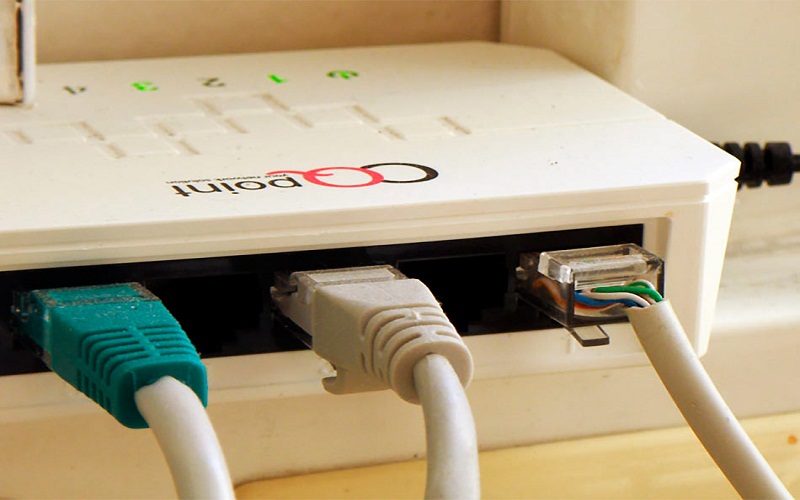
The most common problem is the classic “WiFi connection is slow”. This can have two causes: first, that your mobile is doing something in the background. Such as updating applications or uploading files to the cloud. The second is that the router is too far away and there are too many obstacles between the room you are in and the device.
To check the first, just take a look at Google Play and other cloud applications like Drive, Google Photos or Dropbox to see. If they are uploading something in the background. This can happen if you have not been connected to Wi-Fi for a while. Since these apps usually come configured by default to update themselves as soon as they detect a WiFi network. If so, you will simply have to pause the synchronization or wait a little bit for it to end.
If it is not that, it is possible that the WiFi network does not reach well to certain corners of your house . This is completely normal, especially in larger homes. The signal loses power with distance. And is further reduced if there are obstacles along the way. Such as walls. If that is the case, you will either have to move the router to a more central point of your house. It arrives more or less well everywhere, or opt for a WiFi connection repeater .
WiFi connection is slow (because the 2.4 GHz band is saturated)
In general, older routers emit only in the 2.4 GHz band , which is the band with which most older smartphones are compatible. This band is usually saturated and it shows a lot in the blocks of flats. Where there are dozens of routers emitting in the same band. Each one does it in a different channel. Although it is possible that yours is emitting in a channel very close to the rest, which can cause interference and slowness. But it can be changed.
To check which channel your WiFi is broadcasting, you simply have to download WiFi Analyzer (it’s free). When you open it, give it the permissions it asks for and let me scan the network. You will see that a graph appears with all the WiFi networks that are around you, among which will be yours. Swipe three times to the left and you will reach a tab where the app will show you the best channels according to the network. Select yours and let yourself be guided by the star system. In our case, the best bands are 10, 12 and 13. The 14 can not be used in Spain.
Touch pass to the computer (or from the mobile browser if you prefer) and access our router. To do this, you only have to enter the address 192.168.1.1 in the URL field. Access with your credentials, look for the option “Channel” or “Channel”, depending on the router you have. And change it to the one with the most stars in the application. Restart the router and you are ready. You will notice an improvement in the speed.
If your router and mobile are newer, they may both be compatible with the 5 GHz band. In that case, access the WiFi connection settings of your mobile and search your network. If two of the same appear, but one of them is “name of the network (5 GHz)”, connect to it. The speed is much higher and you will notice a palpable change. At the same time but on a single SSID. If so, your mobile will automatically connect to the best. So you will not have to touch anything.
The mobile does not connect to WiFi

If the problem you have is that your device does not connect to the WiFi network. There are several things you can do. First, have you checked that the WiFi is on? Lower the notification curtain. If not, click on the icon and let the mobile analyze the networks. It will connect right away.
Maybe, for X reasons, your mobile has forgotten the password of your WiFi network. This is easy to check. Simply access “Settings”> “Wireless and networks”> “WiFi” and search your network.
If a message like “Saved network” appears but you’re still offline. Chances are you’ve messed with the key . Click on it, select “Forget network” and try again to connect.
The mobile does not detect the WiFi network

If this is the case, the thing can get serious. If your mobile, even being near the router, does not detect the WiFi network. It is possible that the router has a problem . The first thing you should do is restart all the devices. The mobile phone is simple, you just have to press the power off button and press “Restart”. The router should turn it off, disconnect it from the power and wait 30 seconds. Done that, reconnect it and turn it on.
If you still do not have access to the WiFi network, try going to “Settings”> “Wireless and networks”> “WiFi”. Go down completely and select “Add network”. Enter the name of your network carefully, select “WPA / WPA2 PSK” in security. And, finally, type the password. It is possible that the router itself is to blame . In that case, it is best to call your company to send a technician who can help you.
It is also important to emphasize that it is possible that your router emits in the 5 GHz band and your mobile phone is not compatible with it. If so, this network will not even appear in the settings, so, unfortunately, the only thing you can do is renew your smartphone for a more advanced one .
WiFi turns off and on randomly
And on without any hint. It is possible that there is a system-level failure . If it is a problem that you have noticed repeatedly, the most sensible thing is to make a backup of your data and then a factory reset.
To do this, go to “Settings”> “Backup and restore” and reset the device data. If this does not solve it, the only thing you have left is to send your mobile phone to the technical service.


Leave a Reply