
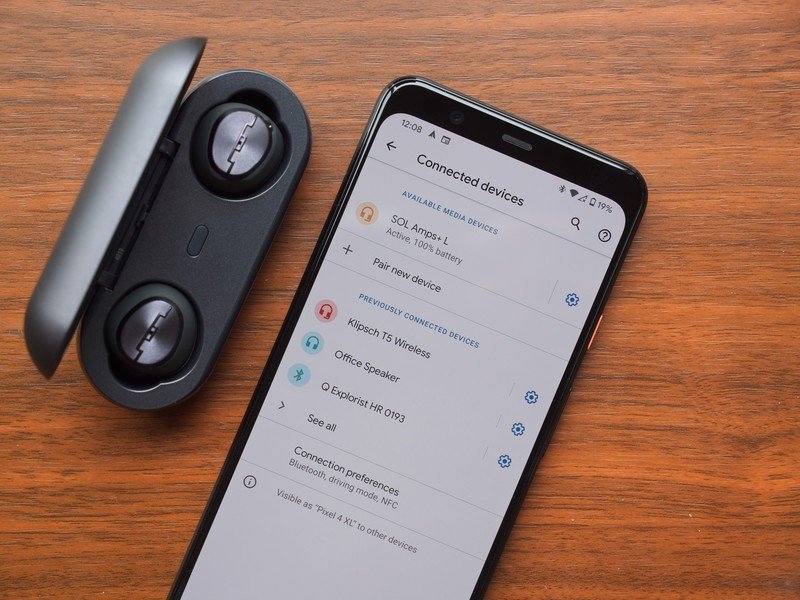
Bluetooth connection via NFC (Near Field Communication) technology
- When an NFC compatible device is placed near the N-Mark logo on the headset, the headset, and mobile device pair and connects via Bluetooth.
- This procedure greatly simplifies Bluetooth pairing:
- Unlock the mobile device screen
- Make sure the NFC function on your mobile device is activated
- (go to Settings – more – NFC)
Touch the mobile device to the N-Mark logo on the unit until the mobile device vibrates or emits a short beep. The distance must be less than 1cm, the two units must almost touch each other.
A device disconnect warning message may appear
If the first attempt fails, try a second or third time and remember to unlock the screen of the mobile device. Try to remove the cover of the mobile phone, as it may block the signal.
1. Establish a Bluetooth connection on an Android device
Perform the connection procedure below:
Set the speaker or headphones to pairing mode.
NOTE: The procedure for setting the pairing mode varies by device. For more information, see the manual that came with the product.
Example: When you press the power button to set the pairing mode.
- Turn off the headphones or speaker, then press and hold the power button for a moment.
- When the power light flashes red and blue, the device enters pairing mode.
Perform pairing of the Bluetooth device you want to connect.
NOTE: The operating procedure of Android 6.0 is shown below.
- Touch the HOME button.
- Tap Settings.
- Tap Bluetooth.
- Tap the device name displayed in the Bluetooth items.
NOTE: If the device name does not appear in the Bluetooth items, the Bluetooth function may be turned off. Activate the Bluetooth function.
When pairing is complete, connected is displayed in the Bluetooth device name.
2. Establish a Bluetooth connection on an iOS device
Perform the connection procedure below:
Set the speaker or headphones to pairing mode.
NOTE: The procedure for setting the pairing mode varies by device. For more information, see the manual that came with the product.
Example: When you press the power button to set the pairing mode.
- Turn off the headphones or speaker, then press and hold the power button for a moment.
- When the power light flashes red and blue, the device enters pairing mode.
Perform pairing of the Bluetooth device you want to connect.
NOTE: The operating procedure of iOS 10 is illustrated below.
- Touch Settings on the HOME screen.
- Tap Bluetooth.
- Set Bluetooth to ON.
- Tap the device name displayed in the Bluetooth items.
NOTE: If the device name does not appear in the Bluetooth items, the Bluetooth function may be turned off.
Activate the Bluetooth function.
When pairing is complete, connected is displayed in the Bluetooth device name.
3. How to delete the device information to repair it
If the device information of the headset or speaker is registered on the mobile device, use the following procedure to delete the device information, then try pairing again.
NOTE: For more information on the method of operation, refer to the instruction manual supplied with the product.
When using an Android device
- Turn off the headphones or speaker.
- Set the Bluetooth on the Android device to ON and delete the device information of the headset or speaker.
- Turn on the headphones or speaker.
- Perform the connection procedure again.
- When using an iOS device.
- Turn off the headphones or speaker.
- Delete the device information of the headset or speaker registered on the iOS device.
NOTE: The operating procedure of iOS 10 is illustrated below.
- Touch Settings on the HOME screen.
- Tap Bluetooth.
- Touch the symbol icon to the right of the headphones or speaker in the device list.
- NOTE: If the device name does not appear in the Bluetooth items, the Bluetooth function may be turned off. Activate the Bluetooth function.
- Tap Forget this Device; the iOS device will enter pairing mode.
- Turn on the headphones or speaker.
- Perform the connection procedure again.


Leave a Reply